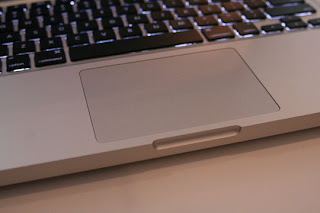
Today Apple Inc. released a fix for the new Glass Trackpad on their late 08' Macbook and Macbook Pro. Owners having issues with the new Trackpad are able to download a patch via Software Update addressing trackpad clicks that randomly go unrecognized. A couple weeks ago Steve Jobs, CEO of Apple Inc. promised to deliver a fix for the new Glass Trackpad. Those users having problems can check the firmware update pushed by Apple and it will fix the problem. Here are some instructions via AppleInsider of how to install the firmware update manually:
Installing the update manually:
Ensure that your computer is plugged into an AC power source before you start.
Then:
- Close any open applications.
- Download the MacBook, MacBook Pro Trackpad Firmware Update 1.0. The download will place a disk image that contains an installer onto your desktop. If you downloaded the update via Safari, Safari will notify you that an application is contained in the image. Click OK to continue.
- If "Open safe files after downloading" is checked in Safari preferences, the disk image file will mount by itself. If that preference is not enabled in Safari, double-click the disk image to mount it.
- Double-click the trackpad firmware update disk image to open it.
- Double-click the TrackpadFirmwareUpdate.pkg file.
- Read the introduction, then click Continue.
- After reading the licensing agreement, click Continue.
- To agree to its terms, click Agree.
- Click Install to install the update application in /Applications/Utilities.
- You will be asked for your administrator password. Enter the password and click OK.
- After the software is successfully installed on your hard drive, an Installation Completed Successfully message appears. Click Close to start the updater application.
- Read the onscreen firmware update installation instructions, then click Update to proceed. Note: The firmware update application may appear behind the installation window.
- You will be asked again for you administrator password. Enter the password and click OK. A progress bar will appear while the update is being applied. The trackpad will not respond during the update. Do not interrupt the update or shut off power on your computer while the update is in progress.
- When the update is complete, you will see "The update completed successfully" in the Status field of the updater application. Click Quit.
Once you've completed the above steps, your trackpad should be updated. You do not need to restart to recognize the benefits of the update. Via AppleInsider.
 Do you love to use your keypad when you drop a credit card number to make a purchase or using Excel at home on your desktop computer? But what about when you're on the road with your laptop wishing to have a keypad for faster number typing. The solution is here, a nice and unique app for iPhone and iPod touch that let's you use your mobile device as an ad-hoc numeric keypad for your Mac. To do so you have to go to Balmuda’s Numberkey website, download the application, install it onto your Mac and then go to the AppStore and buy the app for your iPhone/iPod touch and you're ready to go. Both softwares communicate to bring a Wireless Numeric Keypad with various skins to choose. Numberkey is only for Mac, so Windows users might have to wait or just ignore it.


 Posts

